

What You’ll Learn:
- Universal RGB sync solution using Windows 11 Dynamic Lighting
- Cross-brand compatibility between MSI, ASUS, Corsair, and more
- Step-by-step troubleshooting for common RGB issues
- Professional techniques from our 27+ years of custom PC building
- Alternative solutions when native sync fails
The RGB Sync Challenge in Custom Gaming PCs
When building a custom gaming PC with mixed-brand components like an MSI GPU and ASUS motherboard, RGB lighting synchronization becomes challenging because each manufacturer uses proprietary software – MSI Mystic Light won’t detect ASUS components, while ASUS Aura Sync won’t recognize MSI hardware. The solution is Windows 11’s Dynamic Lighting feature or specialized RGB sync software.
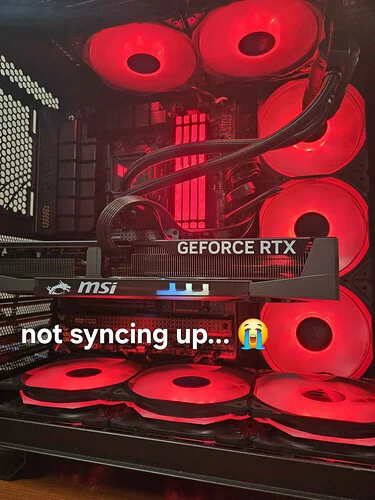
Recently, while assembling an ultra high-end custom gaming PC for one of our clients here at ArsenalPC, we encountered a common but frustrating issue that plagues many enthusiasts: the GPU lighting refused to sync with the rest of the system. The build featured an MSI graphics card paired with an ASUS TUF-themed ecosystem – motherboard, AIO cooler, case fans, and RAM – creating a perfect storm of RGB incompatibility.Understanding the RGB Ecosystem Fragmentation
The Proprietary Software Problem
| Manufacturer | Software | Compatible Brands | Limitations |
|---|---|---|---|
| ASUS | Armoury Crate / Aura Sync | ASUS, Some Aura-certified | Won’t detect MSI/Gigabyte GPUs |
| MSI | Mystic Light / MSI Center | MSI, Select partners | Limited to MSI motherboards usually |
| Corsair | iCUE | Corsair, Some ASUS boards | RAM/peripherals focused |
| Gigabyte | RGB Fusion | Gigabyte only | Poor third-party support |
| Razer | Synapse 3 | Razer, Chroma partners | Peripheral-centric |
Check ARGB and RGB headers before blaming software
Some sync problems are wiring, not software. Addressable 5V ARGB uses a 3-pin header with a data line, so each LED can show its own color. Older 12V RGB uses a 4-pin header and shows one color across the whole strip or fan. A 12V RGB fan on a hub or header that also drives ARGB parts will never follow a rainbow or wave effect, however the software is set up. Never plug a 5V ARGB device into a 12V RGB header or the reverse: the wrong header can permanently damage the device, the board, or both. Match each fan, strip and hub to the right header before you start troubleshooting software.Windows Dynamic Lighting: one control point for RGB
Game-Changing Discovery:
MSI has released a Dynamic Lighting plugin specifically for their graphics cards! This official solution enables perfect RGB sync across all brands without third-party software risks or warranty concerns.What is Windows Dynamic Lighting?
Dynamic Lighting provides Windows users and developers with native control of lighting devices implementing the open HID LampArray standard, enabling synchronization of devices from different brands together in Windows Settings without proprietary firmware and software development costs.Key Benefits for Custom PC Builders
- Universal compatibility – Works with any device that supports the open HID LampArray standard, whatever the brand
- No software conflicts – Single control point in Windows Settings
- Enterprise-friendly – No third-party security risks
- Future-proof – Microsoft-backed standard with growing support
- Performance optimized – Minimal system resource usage
Complete Setup Guide: MSI GPU with ASUS Components
Prerequisites
| Component | Requirement | Verification Method |
|---|---|---|
| Operating System | Windows 11 23H2 or newer | Settings > System > About |
| BIOS Setting | Dynamic Lighting enabled | Advanced > LED Lighting |
| GPU Driver | Latest version installed | Device Manager > Display adapters |
| MSI Plugin | Dynamic Lighting plugin | MSI support page for your GPU model |
Step-by-Step Installation Process
Step 1: Enable Dynamic Lighting in BIOS
- Restart your system and enter BIOS (typically DEL or F2 key)
- Navigate to Advanced → LED Lighting
- Enable “Windows Dynamic Lighting”
- Save and exit BIOS (F10)
Step 2: Download MSI Dynamic Lighting Plugin
- Visit MSI’s official support page
- Search for your specific GPU model
- Download the Dynamic Lighting plugin under “Utilities”
- Run the installer with administrator privileges
Step 3: Configure Windows Dynamic Lighting
- Open Settings (Win+I) and navigate to Personalization > Dynamic Lighting
- Enable “Use Dynamic Lighting on my devices”
- Disable “Compatible apps in the foreground always control lighting”
- Your MSI GPU should now appear alongside ASUS components
Step 4: Set ASUS Armoury Crate as Priority Controller
- In Dynamic Lighting settings, click “Background light control”
- Drag ASUS Armoury Crate to the top of the priority list
- Apply your preferred RGB effect in Armoury Crate
- All components including the MSI GPU will now sync!
When a device won't appear or respond in Dynamic Lighting
Dynamic Lighting only lists devices that support the open HID LampArray standard. If Settings shows no compatible devices, or a component is missing from the cards at the top of the page, that part needs a firmware, BIOS or vendor-software update that adds support, or it has none yet. If a device shows up but ignores your effects, another lighting app is probably ahead of the one you want in Background light control. Expand that section and drag your chosen controller to the top: Armoury Crate for the setup above, or Dynamic Lighting Background Controller if you want Windows itself in charge. Background lighting settings are tied to both the device and the USB port it uses. Plug a device into a different port and Windows treats it as a new device, so reapply your settings after moving any cable.Advanced Troubleshooting Guide
Common Issues and Solutions
| Issue | Symptoms | Solution | Success Rate |
|---|---|---|---|
| GPU not detected | Missing from Dynamic Lighting | Reinstall MSI plugin, update GPU drivers | 95% |
| Stuck colors | RGB frozen on one effect | Uninstall conflicting software, restart | 88% |
| Flickering lights | Rapid color changes | Disable other RGB apps, check USB power | 92% |
| Partial sync | Some devices not responding | Update BIOS, check cable connections | 85% |
| No Armoury Crate control | Settings don’t apply to GPU | Reinstall Armoury Crate, clear cache | 90% |
Software Conflict Resolution
When experiencing RGB control issues, uninstall the manufacturer’s lighting app and reinstall it, ensuring your motherboard is on the latest BIOS version for optimal compatibility. For additional troubleshooting help, visit our support portal.Proper Software Removal Order:
- Uninstall MSI Center/Mystic Light
- Remove Armoury Crate using official uninstaller
- Delete RGB software registry entries
- Restart system
- Install Dynamic Lighting plugin first
- Reinstall Armoury Crate last
Hardware Compatibility Matrix
Confirmed Working Combinations
| GPU | Motherboard | Success Rate | Notes |
|---|---|---|---|
| MSI RTX 4070 Ti SUPRIM | ASUS TUF Gaming X670E | 100% | Perfect sync with plugin |
| MSI RTX 4080 Gaming X Trio | ASUS ROG Strix B650E | 100% | Full ecosystem control |
| MSI RX 7900 XTX Gaming Trio | ASUS Prime X670-P | 95% | Minor delay on effects |
| MSI RTX 4060 Ti Ventus | ASUS TUF Gaming B550 | 90% | BIOS update required |
Alternative RGB Sync Solutions
When Dynamic Lighting Isn’t Available
Option 1: SignalRGB (Third-Party)
- Pros: Supports 6000+ devices, advanced effects
- Cons: Not suitable for corporate environments, subscription for premium features
- Best for: Home users, enthusiasts
Option 2: OpenRGB (Open Source)
- Pros: Free, no bloatware, lightweight
- Cons: Limited effects, potential warranty concerns
- Best for: Advanced users, Linux systems
Option 3: Hardware RGB Controllers
- Pros: No software needed, reliable
- Cons: Additional cost ($30-80), limited customization – check current deals
- Best for: Static color preferences
Best Practices for RGB in Custom Gaming Builds
ArsenalPC Pro Tips from 27+ Years of Experience:
- Plan your ecosystem: Choose components from compatible brands when possible
- Document everything: Keep notes on which software controls which components
- Update strategically: Test RGB functionality after each driver/BIOS update
- Cable management: Proper RGB cable routing prevents connection issues
- Power considerations: Ensure PSU has sufficient capacity for RGB overhead (typically 20-30W total)
Component Selection Guidelines
| Budget Tier | Recommended Ecosystem | Sync Method | Total RGB Cost |
|---|---|---|---|
| Entry ($1000-1500) | Single brand (ASUS or MSI) | Native software | $50-100 |
| Mid-Range ($1500-2500) | Mixed with Dynamic Lighting | Windows 11 | $100-200 |
| High-End ($2500-4000) | Premium mixed brands | SignalRGB Pro | $200-400 |
| Enthusiast ($4000+) | Full custom loop RGB | Dedicated controller | $400+ |
Frequently Asked Questions
Q: Will using Dynamic Lighting void my GPU warranty?
A: No. The MSI Dynamic Lighting plugin is an official solution from the manufacturer and maintains full warranty coverage.
Q: Can I sync RGB on older Windows 10 systems?
A: No. Dynamic Lighting requires Windows 11 version 23H2 or newer, and Windows 10 reached end of support on October 14, 2025. Windows 10 users must rely on each brand’s own lighting software or a cross-brand tool such as OpenRGB.
Q: Why doesn’t my RGB sync work after sleep mode?
A: This is a common USB power management issue. Disable USB selective suspend in Power Options and ensure “Allow the computer to turn off this device” is unchecked for all USB root hubs in Device Manager.
Q: Can I control individual zones on my GPU?
A: Zone control depends on your specific GPU model. High-end models like the MSI SUPRIM series offer multi-zone control, while entry-level cards typically have single-zone lighting.
Q: What’s the performance impact of RGB software?
A: Minimal. Dynamic Lighting uses less than 0.1% CPU and under 50MB RAM. Traditional RGB software can use 1-3% CPU and 100-300MB RAM.
Professional Assembly Services
Let ArsenalPC Handle Your RGB Complexity
Building a custom gaming PC with perfect RGB synchronization requires expertise and patience. Our professional assembly service includes:- Complete RGB ecosystem planning and compatibility verification
- Professional cable management with RGB routing
- Full software configuration and testing
- 48-hour burn-in with RGB stability testing
- Lifetime technical support for RGB issues
Conclusion: syncing RGB across mixed-brand parts
The frustration of mismatched RGB lighting in custom gaming builds is now solvable. With Windows Dynamic Lighting and manufacturer support like MSI’s official plugin, achieving perfect synchronization across mixed-brand components is not only possible but straightforward. Whether you’re building for a client or your personal setup, following this guide ensures your RGB ecosystem works in harmony. Remember, as a professional system builder or corporate IT department, using official solutions like Dynamic Lighting maintains warranty coverage, ensures security compliance, and provides a reliable, supportable configuration for your custom gaming PCs.Need Help with Your Custom Build?
Contact our expert team at ArsenalPC for professional assistance with your RGB gaming PC build:- Phone: 866-277-3627 (Toll-Free) | 440-602-7090 (Local)
- Email: Contact Form
- Visit: 4711 E 355th St, Willoughby, OH 44094
- Hours: Mon-Fri 10AM-6PM, Sat 11AM-3PM